Start
Publishing
From logging in to checking the live page. Allow 20 minutes the first time.
Before you start, have these ready
- Headline, final.
- Summary: one or two sentences, 120 to 160 characters. You'll use it twice: on the post's card and as its description in Google.
- The text, final and proofread, with subheadings marked.
- A main image: JPG or PNG, about 1600 px wide. See Images.
- One to three topics it belongs to, from the existing list.
1. Log in and open Insights
- Log in and open the site (see Open the site).
- In the CMS tab, open Insights and search for your headline, to check the post doesn't exist already.
- Click New item.

2. Name and web address
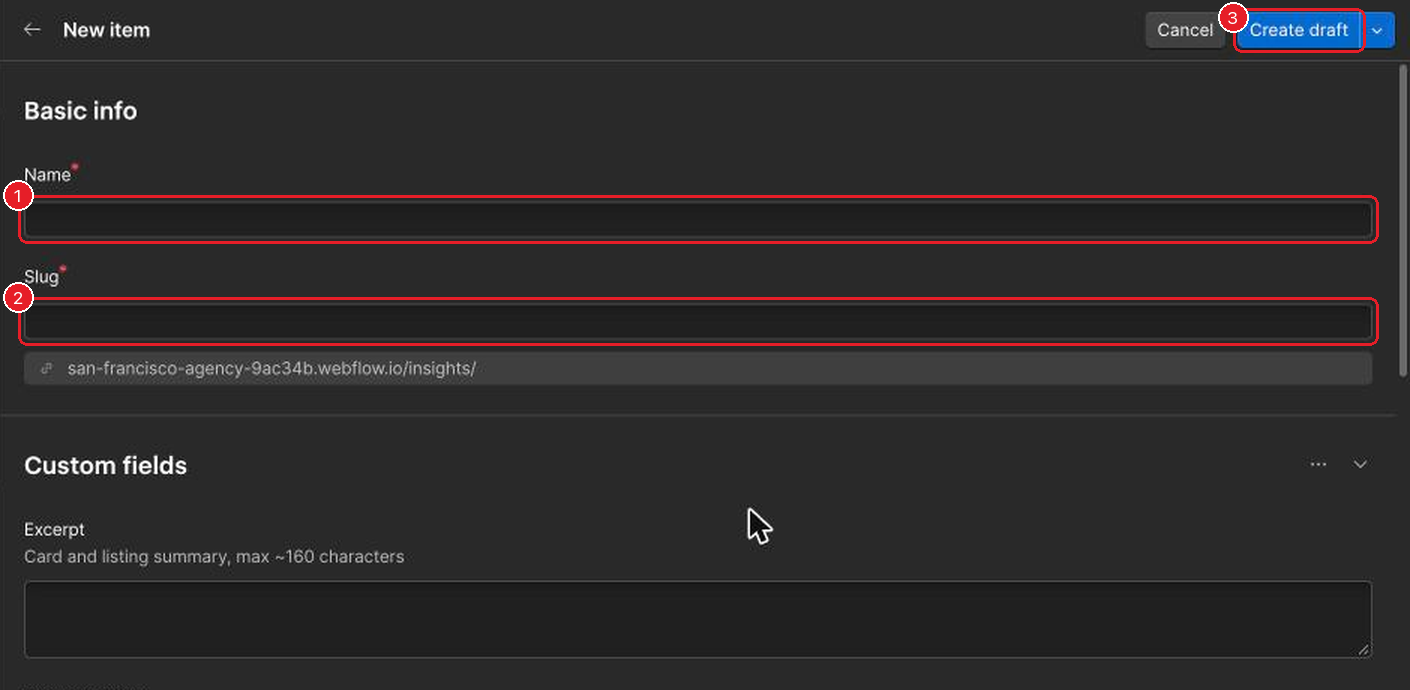
- Type the headline in Name.
- Check the Slug, the end of the web address. It's filled in from the name. Shorten it to a few words, lowercase, with hyphens: media-training-tips. Get it right now: changing it after publishing breaks links.
3. Fill in the fields
- Type: Guide for a practical how-to, Article for everything else.
- Excerpt: Paste your summary.
- Featured image: Upload your main image. It's also the picture people see when the post is shared.
- Body: Paste the text as plain text, then add headings and links. See Writing long text.
- Published date: Today's date. The Insights page is sorted by it.
- Primary topic: The one topic shown on the card.
- Topics: One to three topics, including the primary one.
- Read time: Number of words divided by 230, rounded up. 700 words ÷ 230 = 3.04, so 4 minutes.
- SEO title: A short version of the headline, 37 characters at most. See Google and sharing.
- Meta description: Paste the same summary again. Reusing it is fine as long as it's 120 to 160 characters and doesn't repeat the headline.
Leave OG image, Author and Original source URL empty unless Insights posts says otherwise.
4. Save and check
- Click Create draft. It's saved but not on the site.
- Go through the Before you publish checklist.
5. Publish and look at it
Once everything on the checklist is ticked:
- Click Publish now. The post goes live straight away.
- Open sanfrancisco.fi/insights and check the post is there. Open it and read it through once on the live site.
- Spot something? Fix it in the CMS and click Publish now again.
Don't use the Publish button at the top of the screen That publishes the whole site, including other people's queued changes. It's Katja's job. Publish now only sends your post.
Questions about the website go to Katja.