Everyday tasks
Images

- Upload JPG for photos and PNG for graphics. Not WebP: images used when a page is shared on LinkedIn must be JPG or PNG.
- Make photos about 1600 px wide at most, and under 500 KB. On a Mac, open the image in Preview, choose Tools › Adjust Size, then File › Export as JPEG. On Windows, use Photos › Resize image.
- Team and advisory photos: square, at least 800 × 800. See Crop a photo to a square below.
- Quote headshots: square, at least 200 × 200.
- Client logos: SVG, or a PNG with a transparent background, trimmed tight.
- Images inside text need alt text: one sentence describing the image for people who can't see it. See Add alt text below.
Crop a photo to a square
- Mac (Preview): open the photo, hold Shift and drag over the part you want (Shift keeps the selection square), then choose Tools › Crop. Resize it with Tools › Adjust Size.
- Windows (Photos): open the photo, choose Edit › Crop, set the aspect ratio to Square, move the frame, then Save a copy.
Keep the face roughly centred, with a little space above the head.
Add alt text
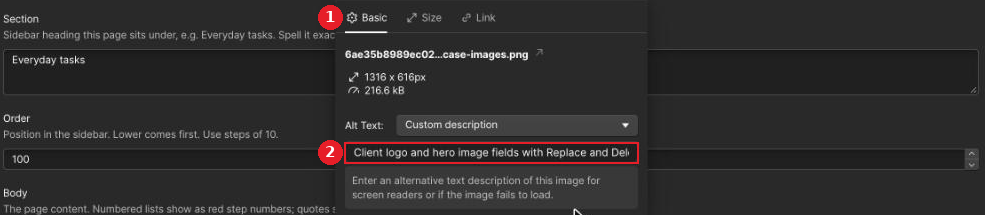
- In a rich text field, click the image you added. A small toolbar appears above it; click the settings icon at its right end. The Basic tab opens.
- Next to Alt Text, keep Custom description and type one sentence in the box under it.
Questions about the website go to Katja.