Everyday tasks
Publish options
A new item
The arrow next to Create draft has three ways to publish:

- Publish now: The item goes live straight away. Use this one.
- Queue for next site publish: It goes live the next time Katja publishes the whole site.
- Schedule to publish later: Pick a date and time.
Take an item off the site
Open the item and use the arrow next to Publish now:
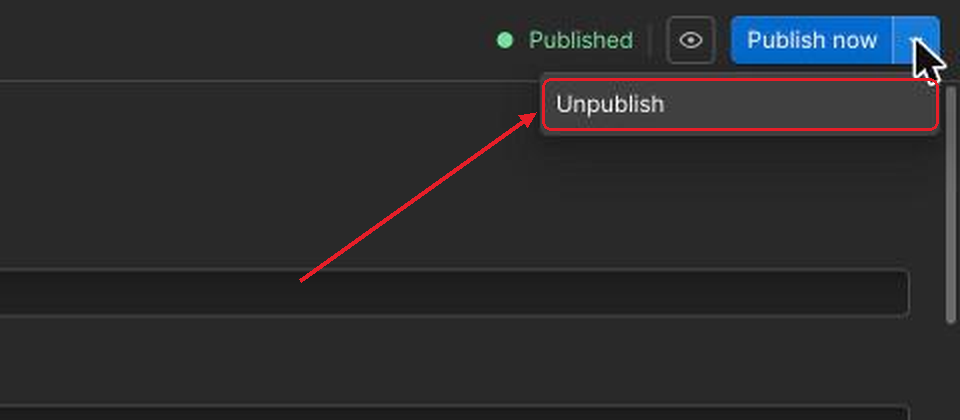
Unpublish removes it from the site straight away and keeps it as a draft. This is the way to take something down.
Publishing the whole site: staging and live
The Publish button at the top right of the Designer publishes the whole site: design changes plus any items queued for it. Items and edits still in draft stay out. Day to day this is Katja's job; everyone else uses Publish now on their own item.

- Staging is a test copy of the site at the webflow.io address. Visitors don't find it, so it's safe to try things there.
- Production is the real site, sanfrancisco.fi. Anything published here is public straight away.
- Publish to selected domains sends the changes only to the ticked addresses.
To try something out Untick sanfrancisco.fi, publish to staging only, then open the webflow.io address and check it. When it looks right, tick both and publish again.
Never click Unpublish domain It sits under each address. On sanfrancisco.fi it takes the whole website offline.
Staging only works for whole-site publishing. Publish now on a CMS item always goes straight to the live site, so check a post with the Before you publish checklist instead.
Questions about the website go to Katja.